Interface Overview
REvoDesign runs as a PyMOL plugin. Its main window is organized into functional zones around a tabbed workflow.
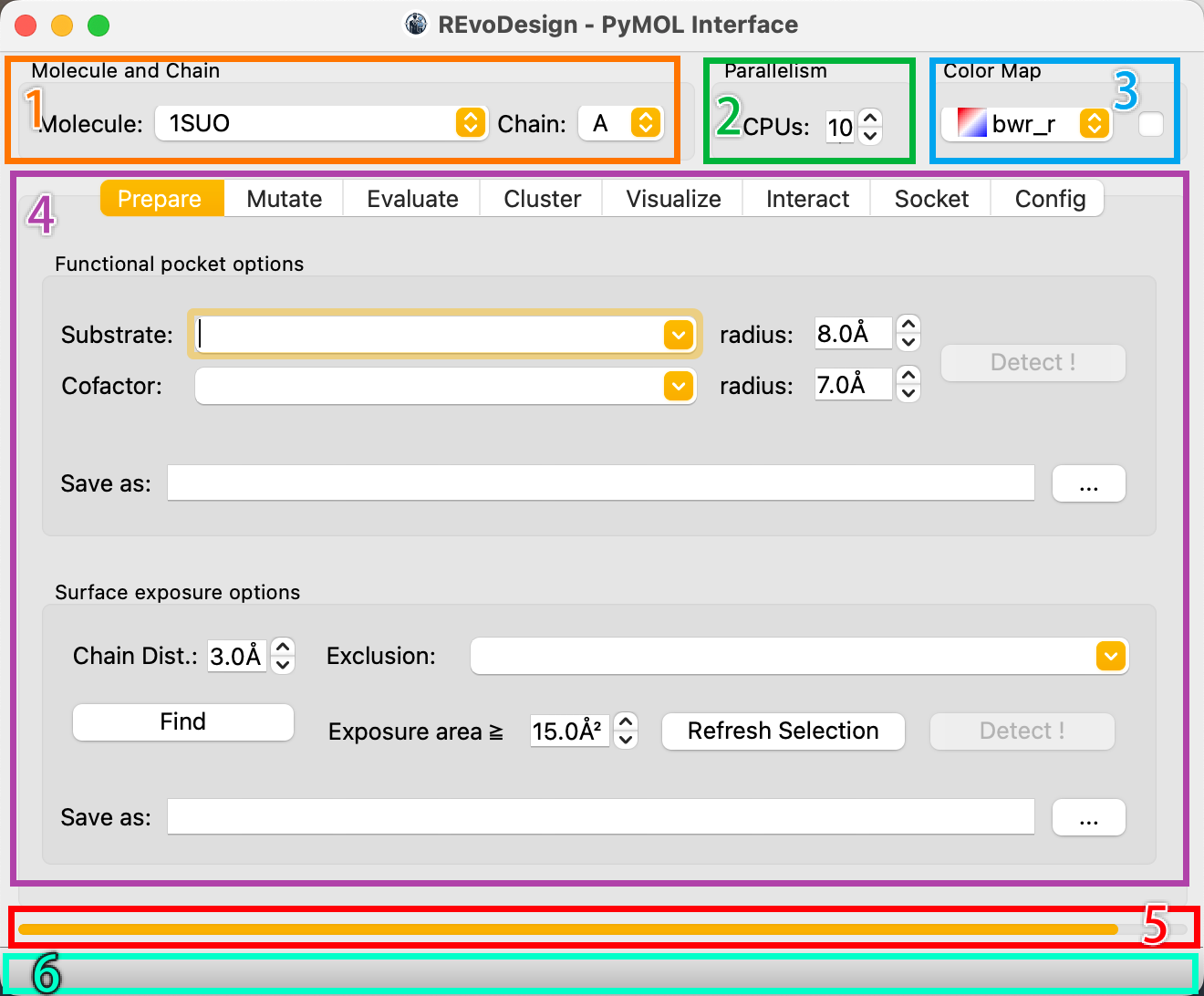
Interface Zones
-
Molecule and Chain Selector — Appears after loading a structure. Select the target molecule and chain for analysis.
-
CPU Core Limit — Caps the number of CPU cores used for parallel computation. Maximum equals available system cores.
-
Color Preset — Select a matplotlib colormap for result coloring. The preview bar shows the low-to-high gradient (top-left to bottom-right). The adjacent checkbox inverts the color scale.
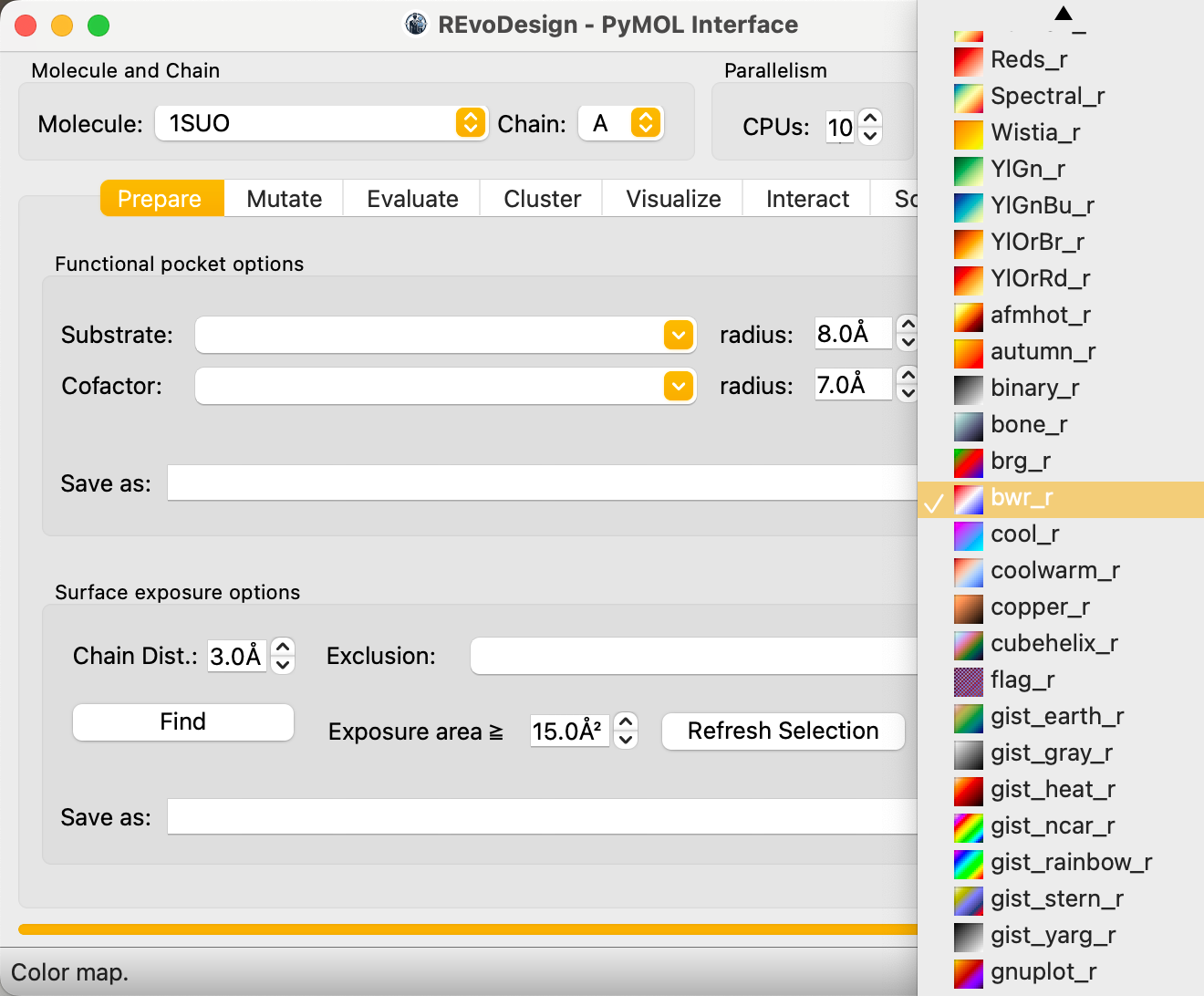
Color preset dropdown with gradient preview icons -
Core Function Tabs — The main workspace, organized by workflow stage: Prepare, Mutate, Evaluate, Cluster, Visualize, Interact, Socket, and Config.
-
Progress Bar — Shows task status:
- Scrolls during background computation.
- Shows design/calculation progress percentage.
- Shows your position during rational screening (e.g., mutant index within the MutantTree, co-evolution pair index in the queue).
-
Tooltip Area — Hover over any control to see usage hints here.
Drop-Down Menus
Auxiliary design tools are organized in the menu bar by function category.
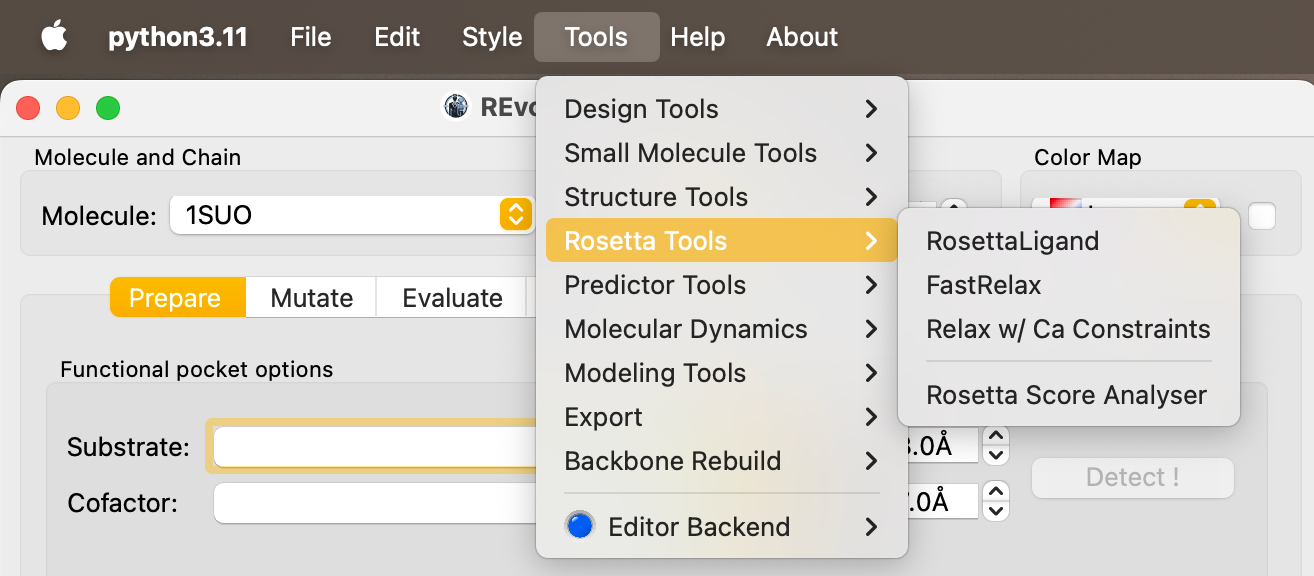
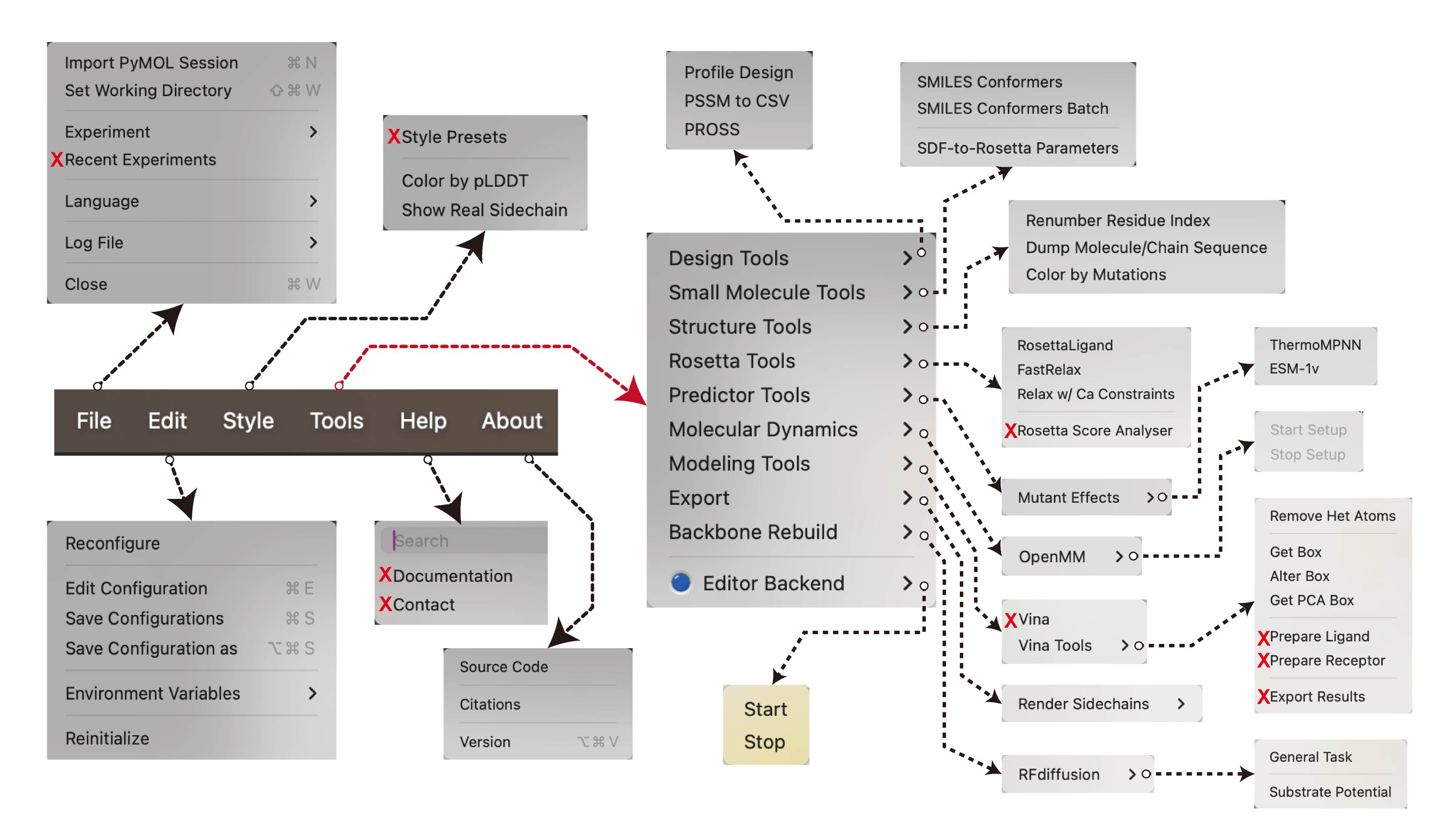
Many menu items open a parameter dialog for user input. For example, Tools → Relax w/ Ca Constraints runs Rosetta sidechain relaxation with Cα restraints.
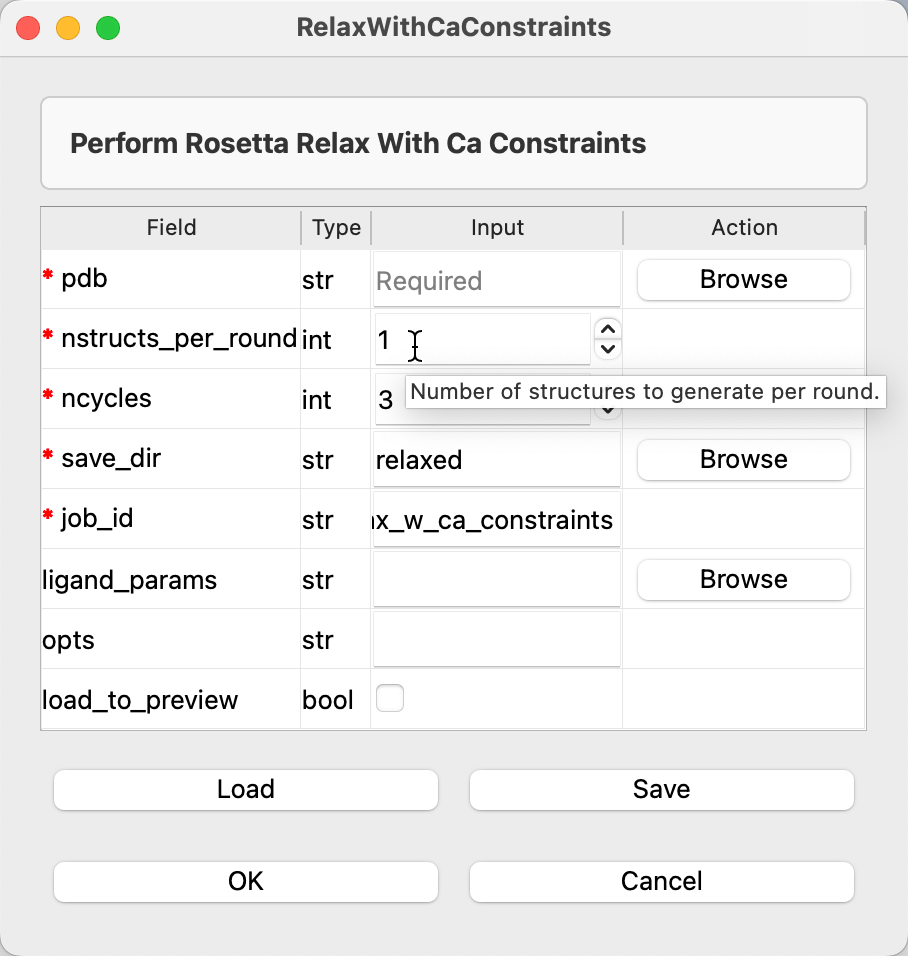
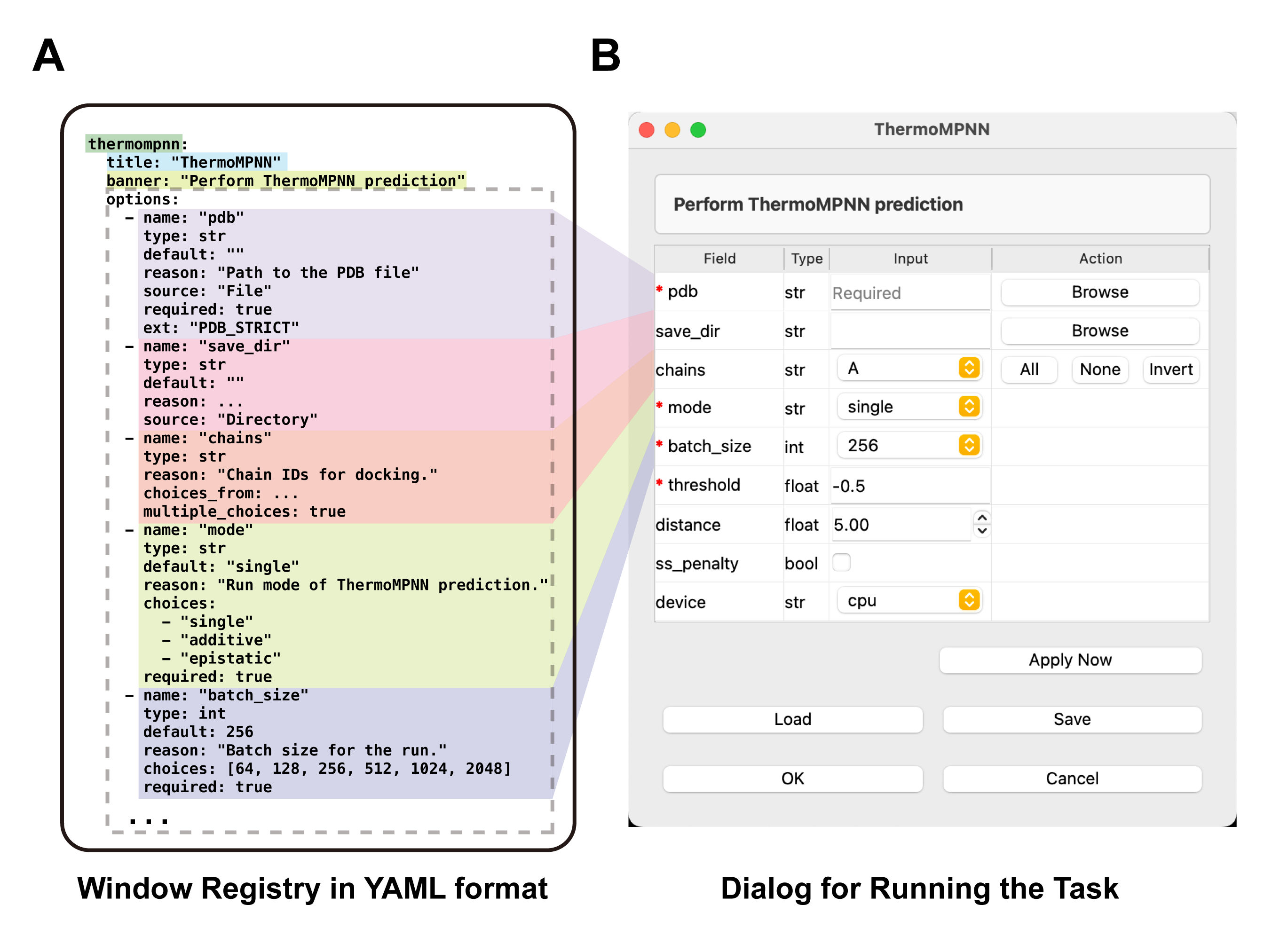
Parameters are ephemeral
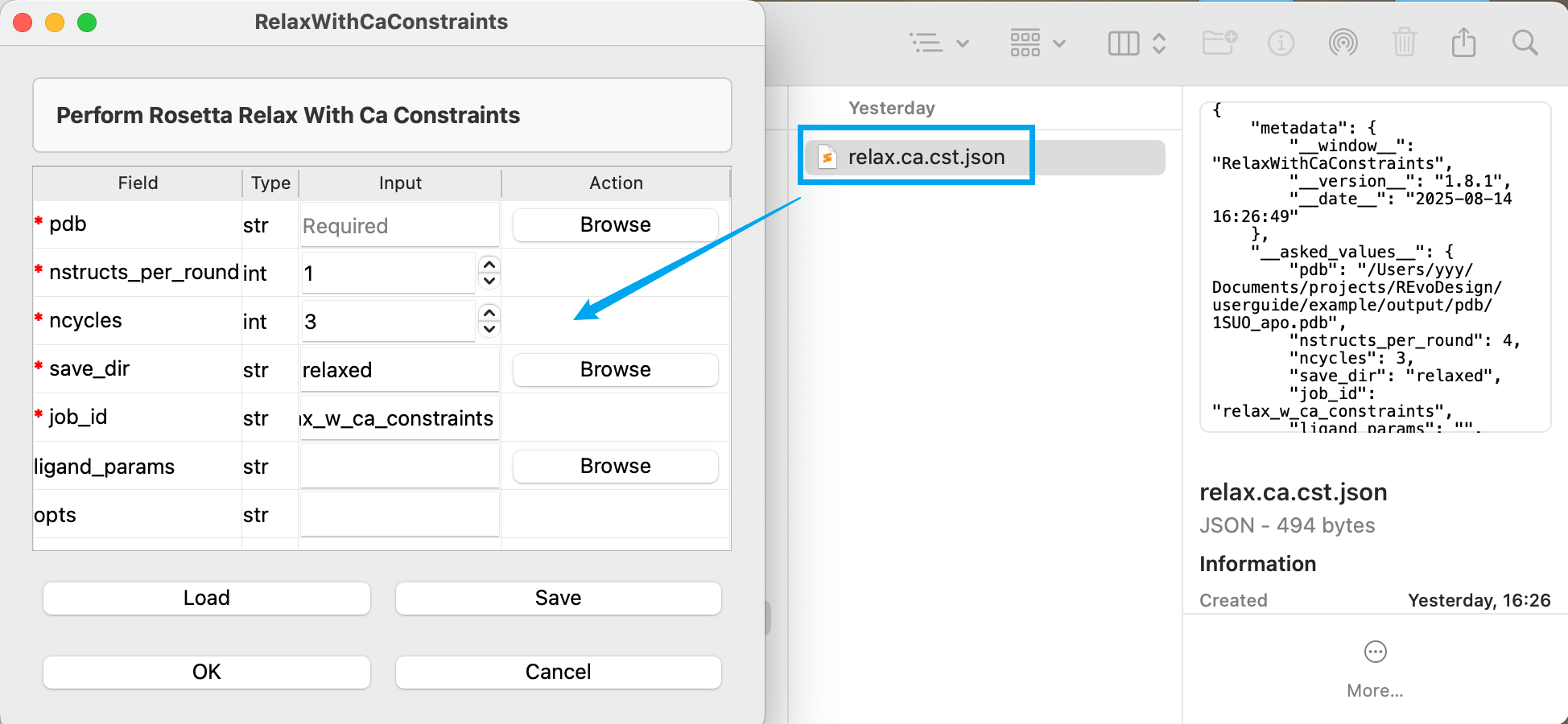
Task dialog inputs are stored in memory only — closing the window discards them. Click Save to persist the parameters as a JSON file for reuse.
Saved parameter files can be reloaded via Load or by drag-and-drop onto the dialog window.
Language Switching
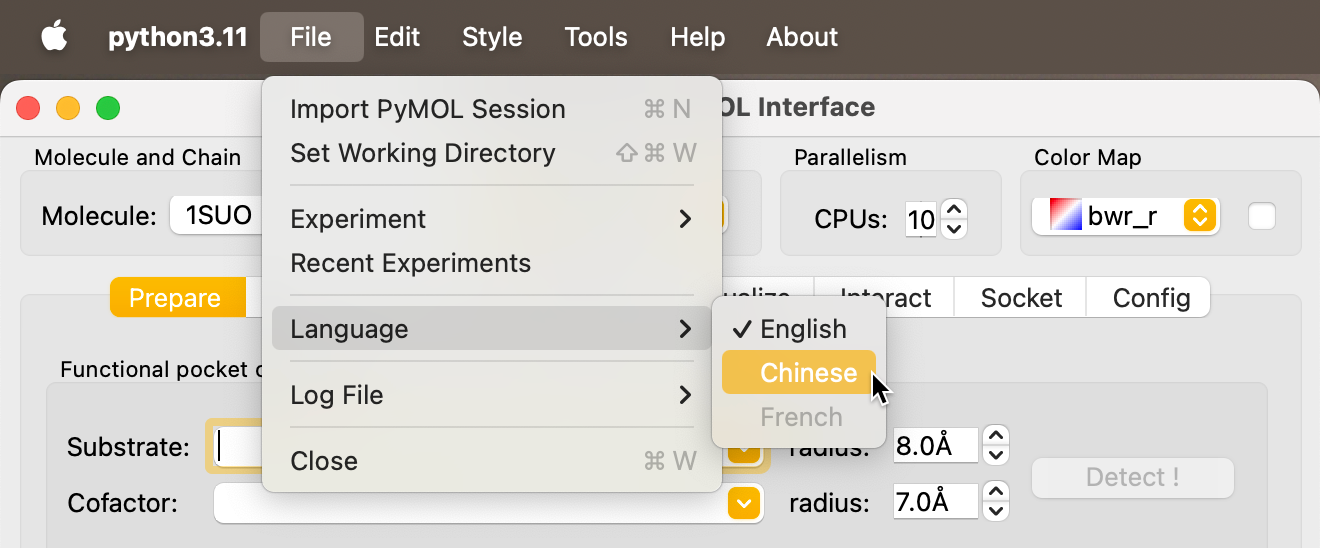
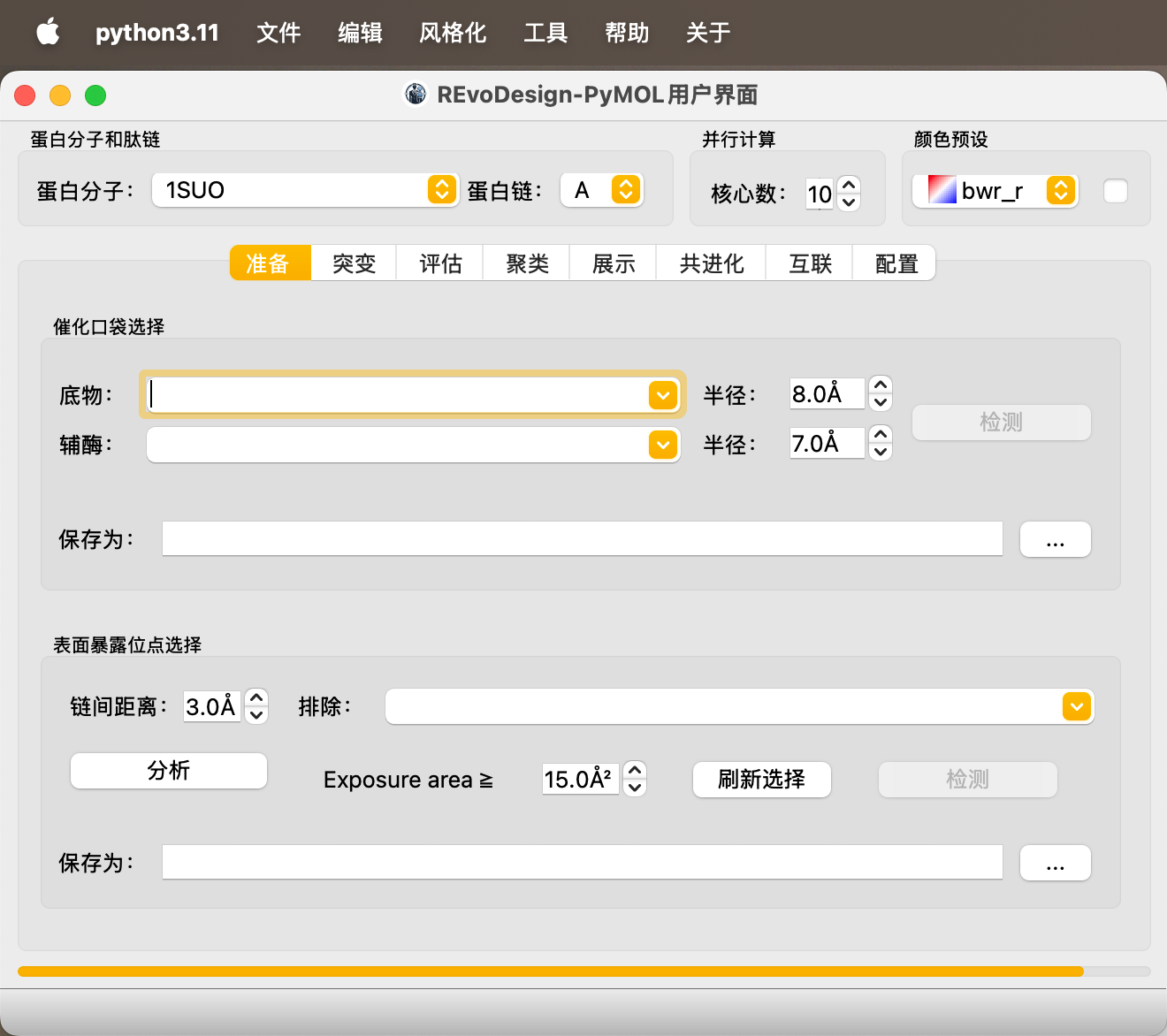
REvoDesign supports internationalization (i18n) for the main window. The language selector is in the top-right area.
Note
Translation covers the main window only. Log messages, task dialogs, and tooltips remain in English.
Configuration Management
All UI changes modify the in-memory configuration immediately but are not persisted to disk automatically.
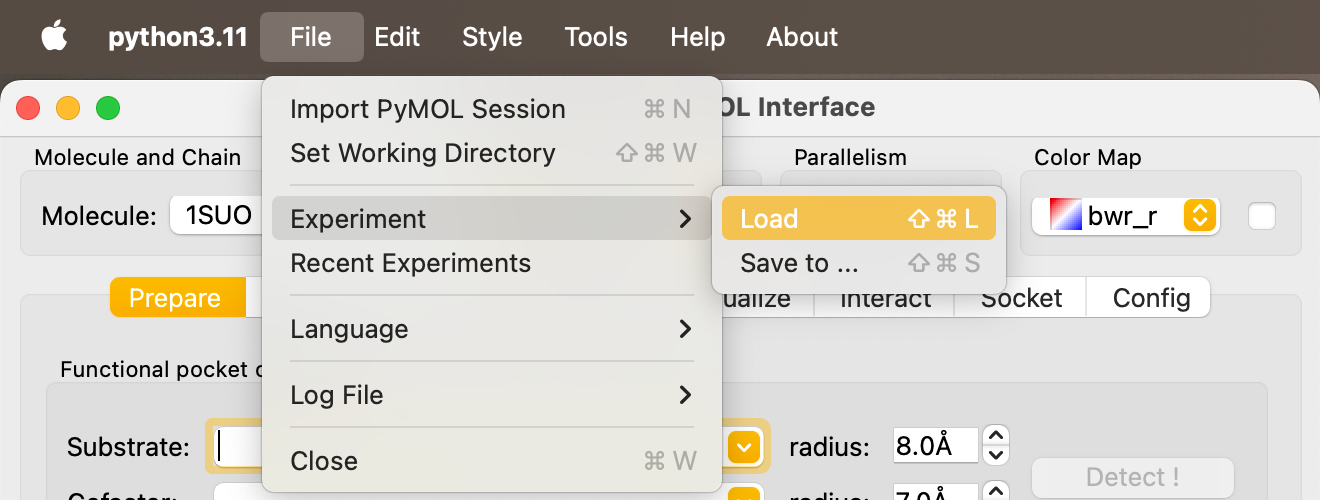
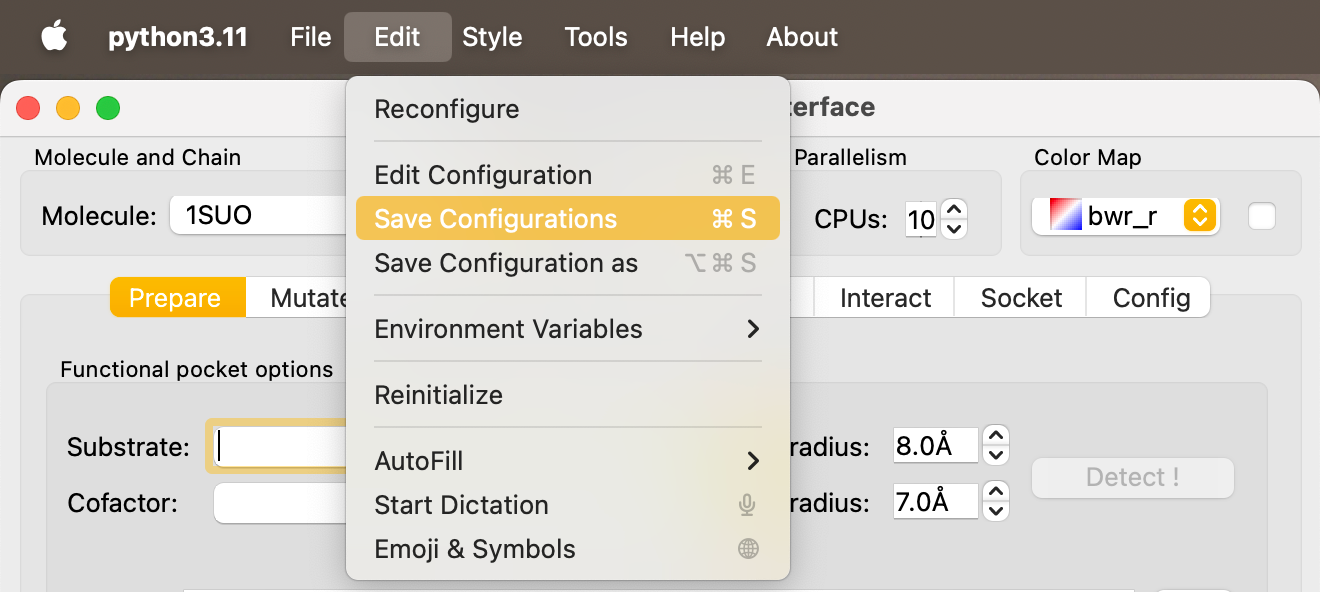
| Action | Shortcut | Description |
|---|---|---|
| Save Configurations | Ctrl+S |
Write current config to disk. Loaded on next startup. |
| Save Configuration As… | Ctrl+Alt+S |
Save to a different location. |
| Save to Experiment | Ctrl+Shift+S |
Save config as a named experiment for reproducibility. |
| Load Experiment | Ctrl+Shift+L |
Load a previously saved experiment. |
| Edit Configuration | — | Open config files in the Monaco editor (external browser). |
| Reconfigure | — | Reload config from disk and apply to UI. |
| Initialize Configuration | — | Delete user config and restore factory defaults. |
Broken config?
If REvoDesign won't start due to a bad configuration, use the Package Manager's right-click menu to Reset REvoDesign's configuration. This restores factory defaults.
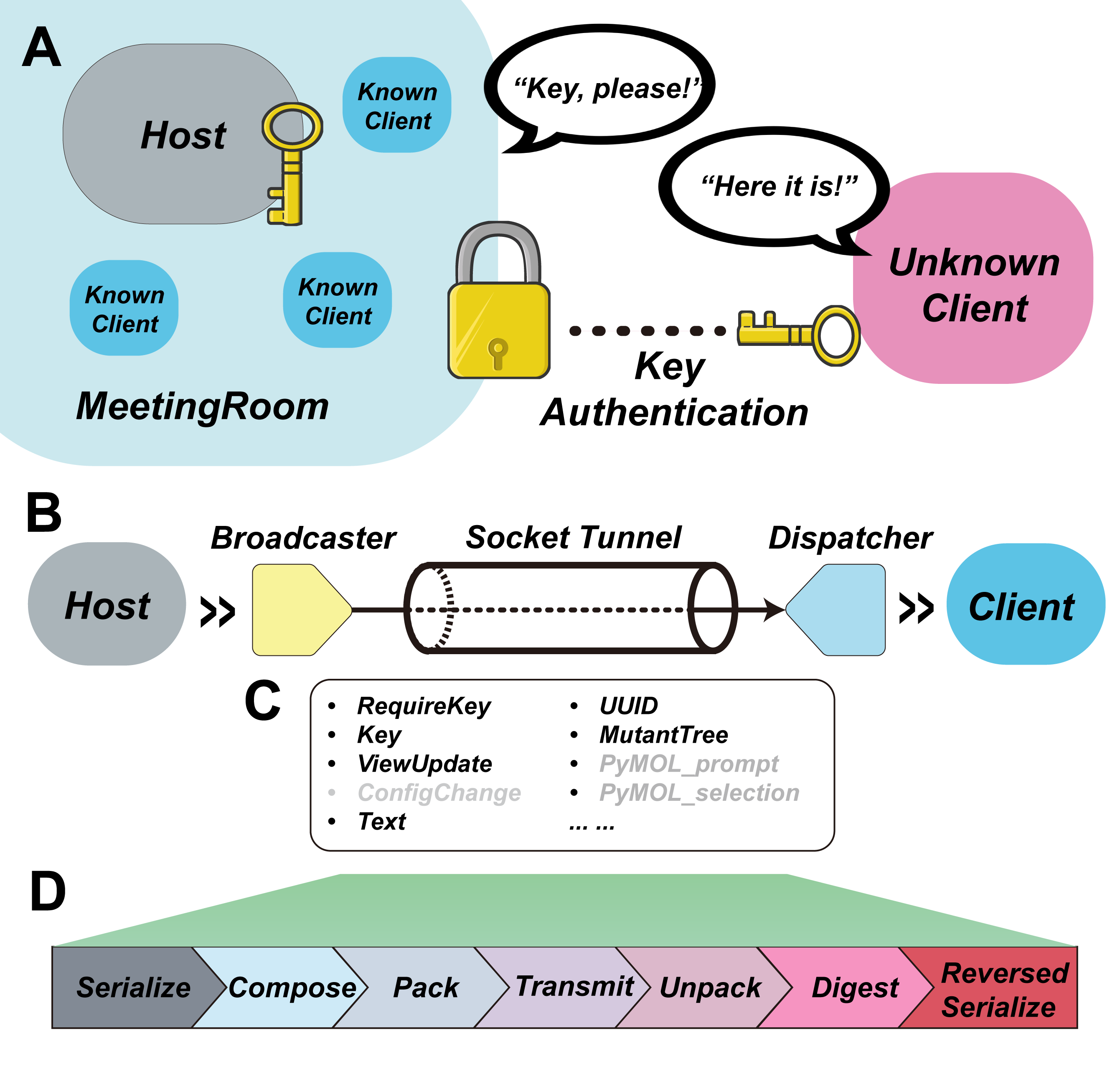
Socket — Multi-User Collaboration
The Socket tab enables real-time peer-to-peer collaboration between multiple REvoDesign instances. Users can share views, mutant trees, and design data over a WebSocket connection.