Advanced Design Tools
Beyond the core Prepare → Mutate → Evaluate workflow, REvoDesign provides additional tools for specialized design tasks.
Profile Design
Profile Design (menu: Design Tools) provides a heatmap interface for free-form design of specific residue ranges, guided by external scoring profiles (PSSM, ESM-1v, Pythia-ddG, etc.).
Unlike the tab-based Mutate step which applies global constraints, Profile Design lets you inspect every amino acid at every position and cherry-pick individual mutations by clicking cells in a matrix.
Opening Profile Design
- Load a structure into REvoDesign first.
- Navigate to the menu: Design Tools → Profile Design.
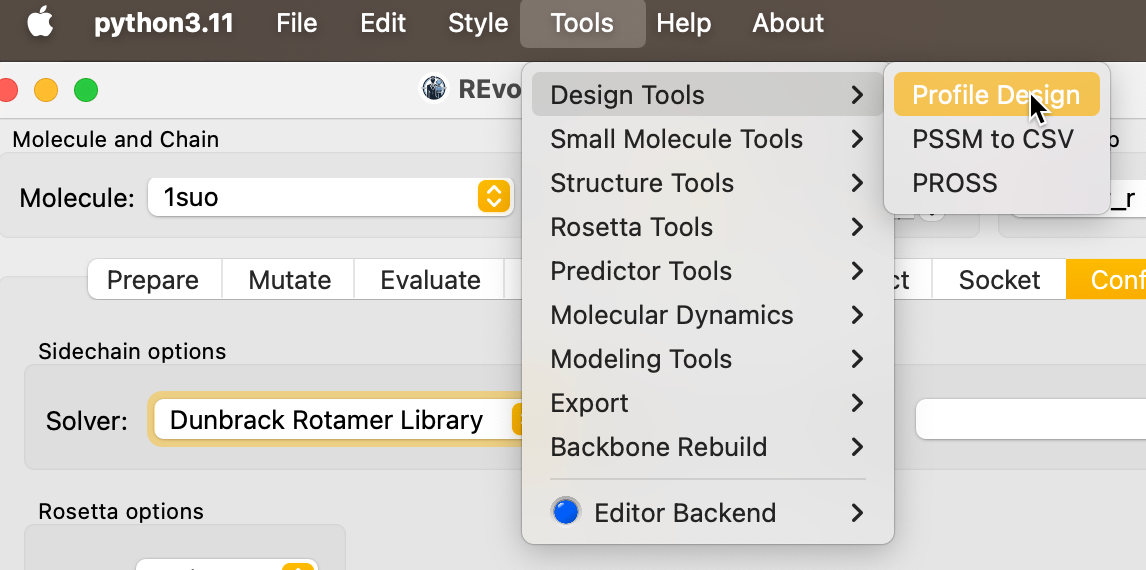
- Enter the residue range of interest.
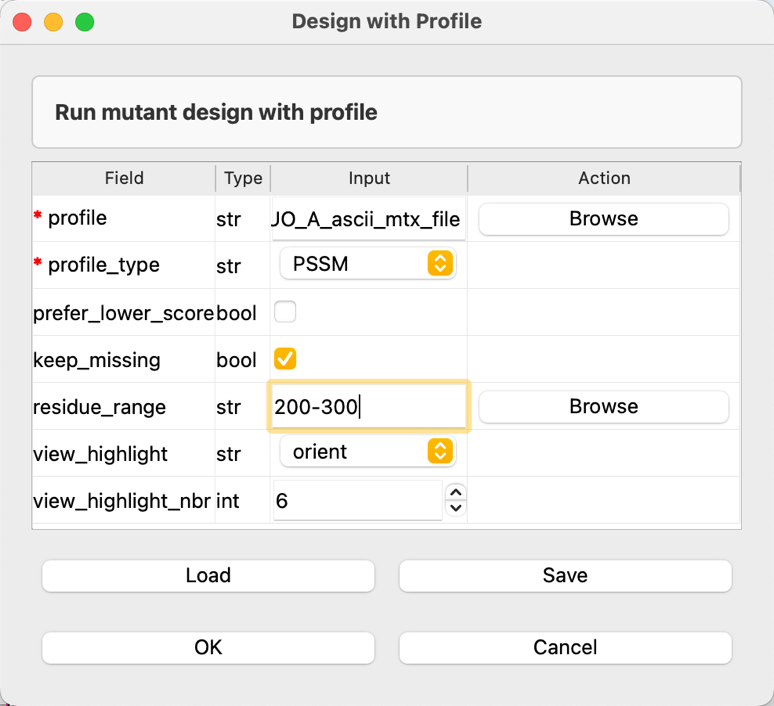
Residue range syntax
All REvoDesign residue range inputs support flexible syntax:
- Single residue:
188 - Contiguous range:
200-300 - Multiple ranges:
99,188,200-300
Ranges can also be loaded from a file.
Using the Heatmap
The Profile Design window shows a matrix where:
- Columns: residue positions
- Rows: 20 standard amino acids
- Cell color: score from the selected profile (follows the main window's color preset)
- WT label: the wild-type amino acid is marked with its single-letter code
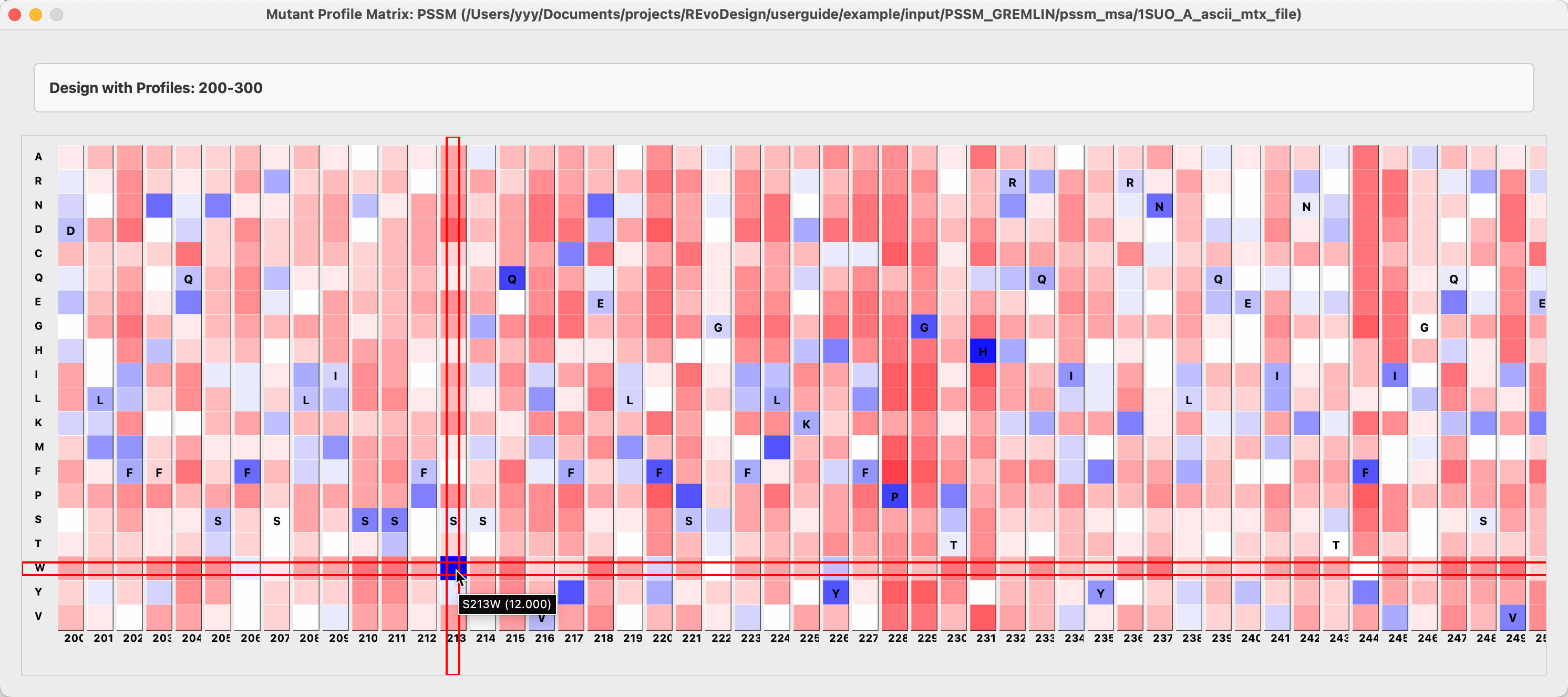
- Hover over a cell to see the position and amino acid details with a crosshair cursor.
- Click any cell to instantly generate that point mutant: the mutant is built, sidechain modeled, scored, grouped, and displayed in PyMOL.
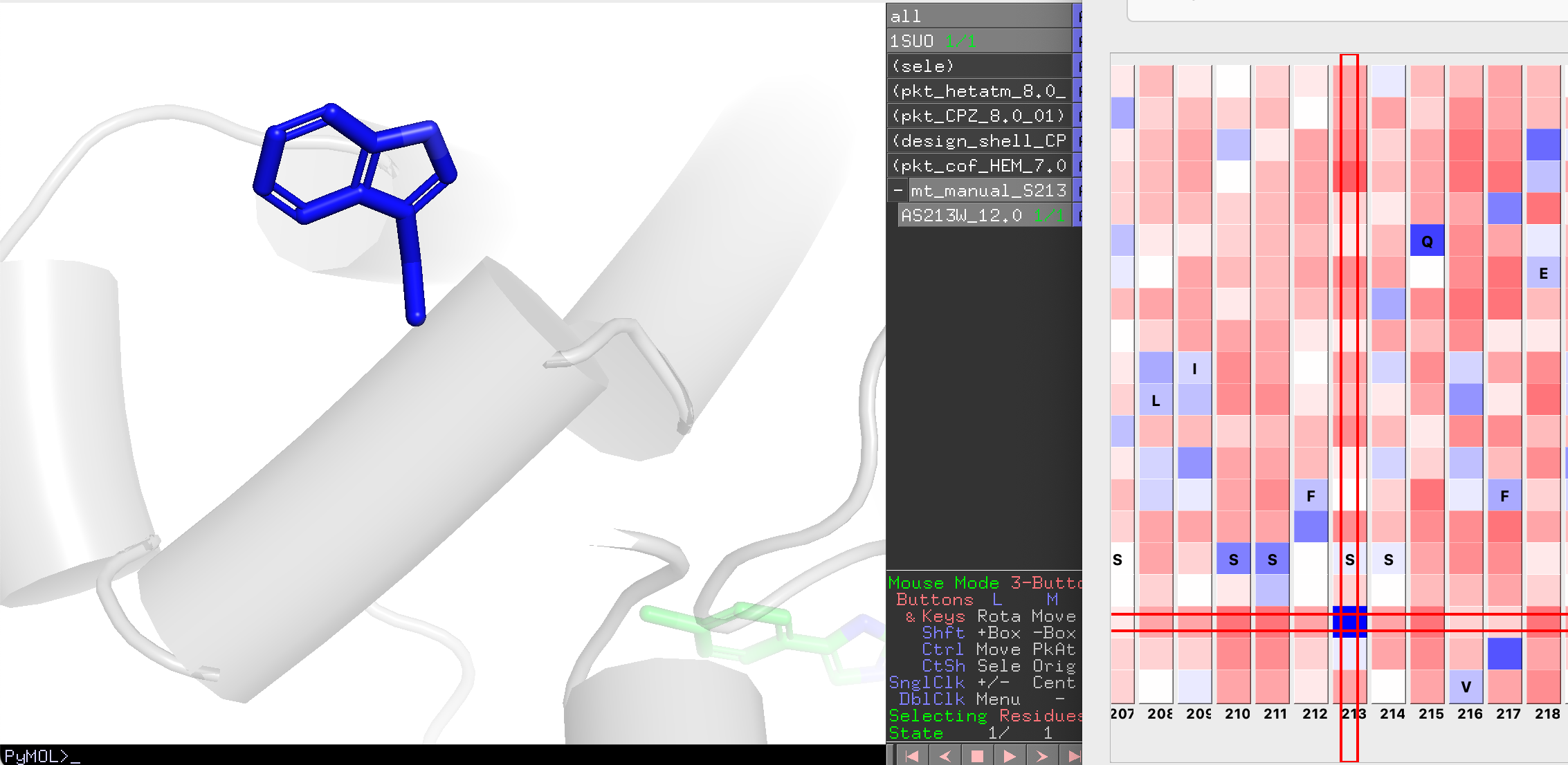
Profile Design uses the main UI's color preset, invert flag, and sidechain solver settings, so configure those before launching.
ThermoMPNN
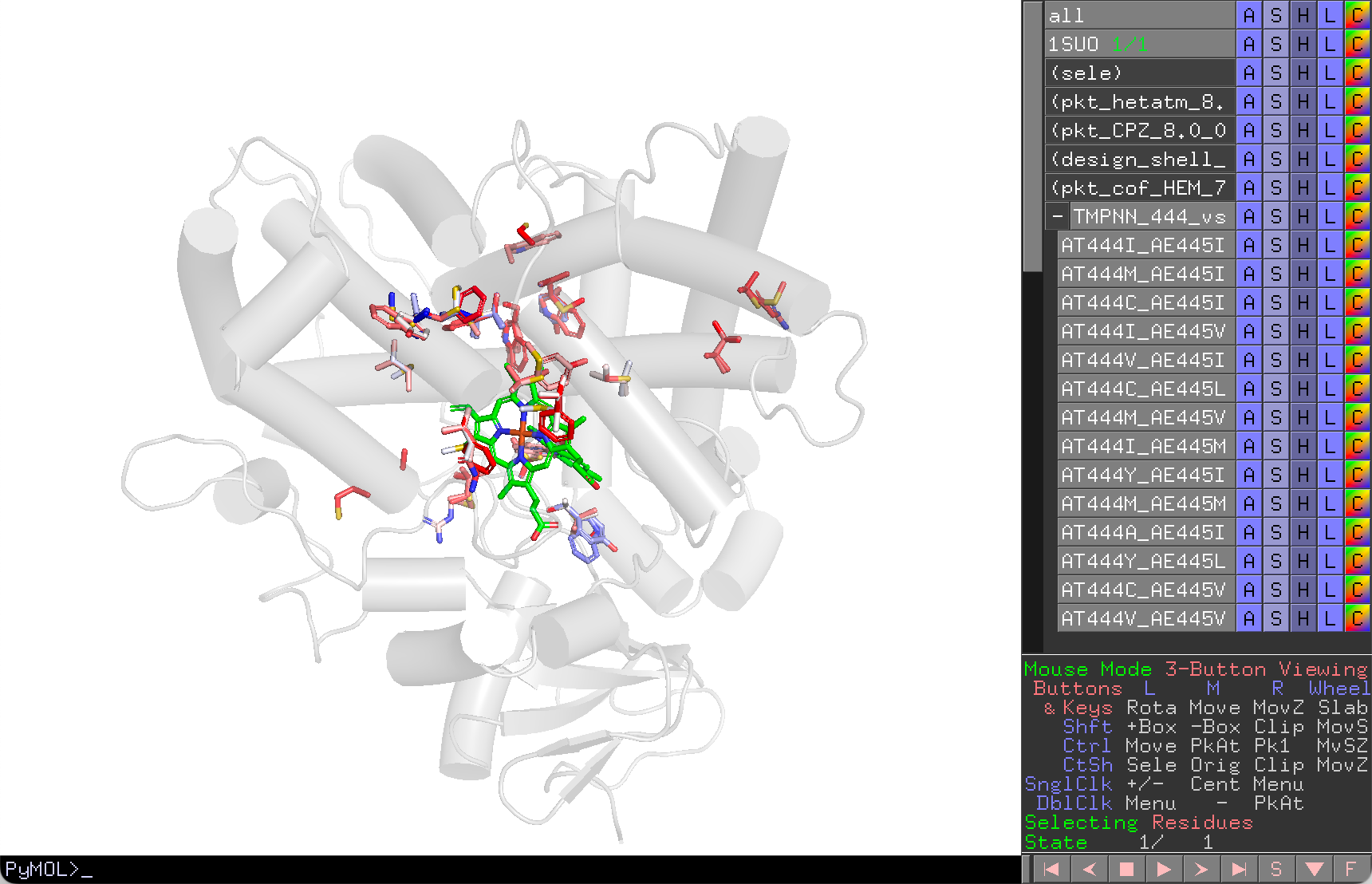
ThermoMPNN (menu: Predictor Tools → Mutant Effects) predicts the effect of mutations on protein thermal stability (ΔΔG), supporting both single-point and pairwise (epistatic) predictions.
Single-Point Scan
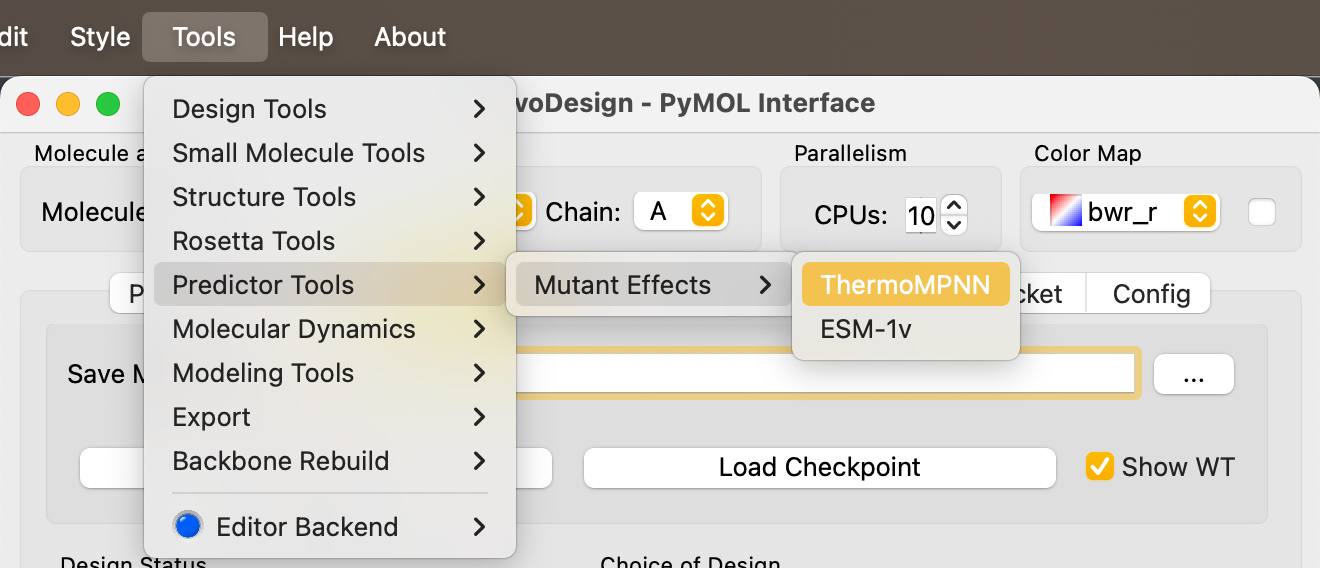
- Open Predictor Tools → Mutant Effects → ThermoMPNN → Single Point.
- Set the residue range and number of top-ranked results to display.
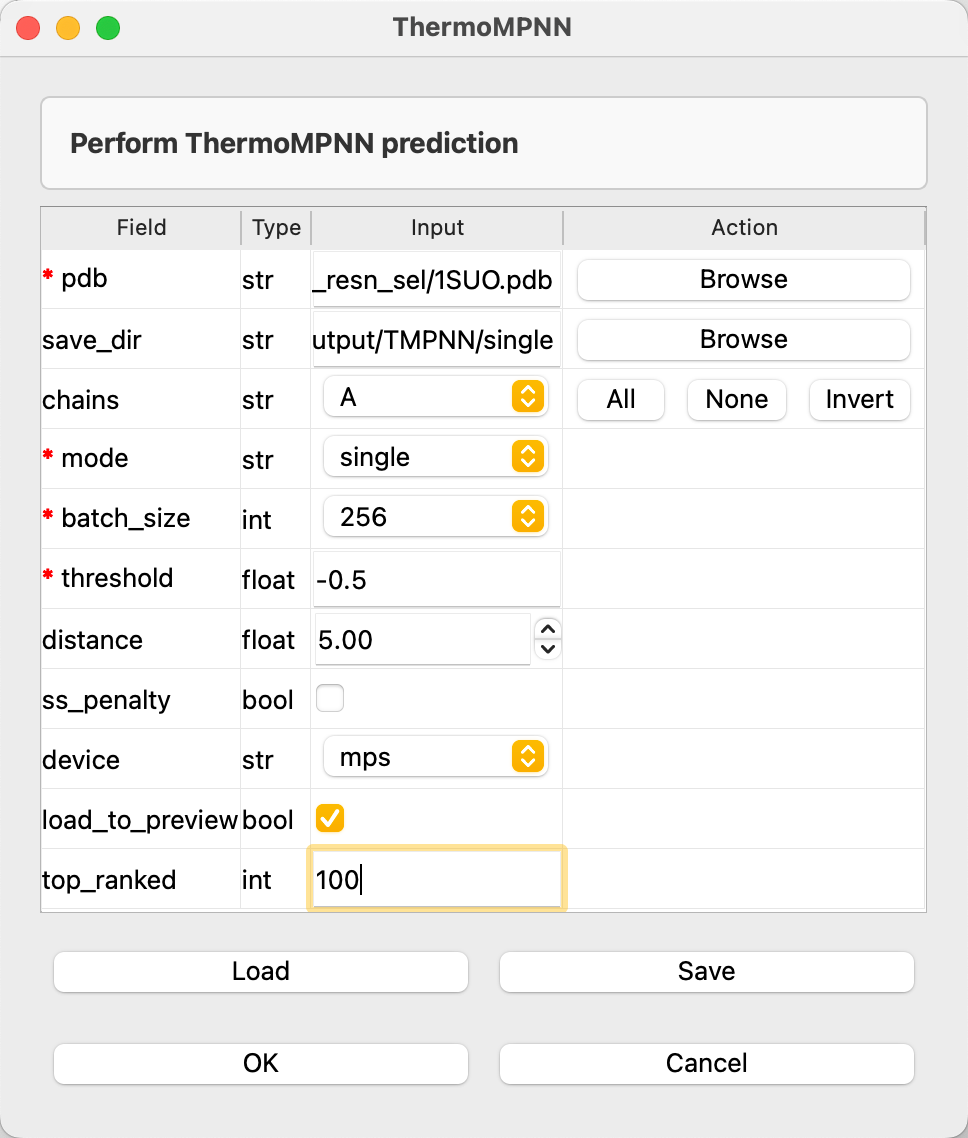
- Click Run.
Top-ranked limit
The default top_ranked = -1 displays ALL results. For double-point scans
this can overwhelm computation. Set to 100–200 for a manageable output.
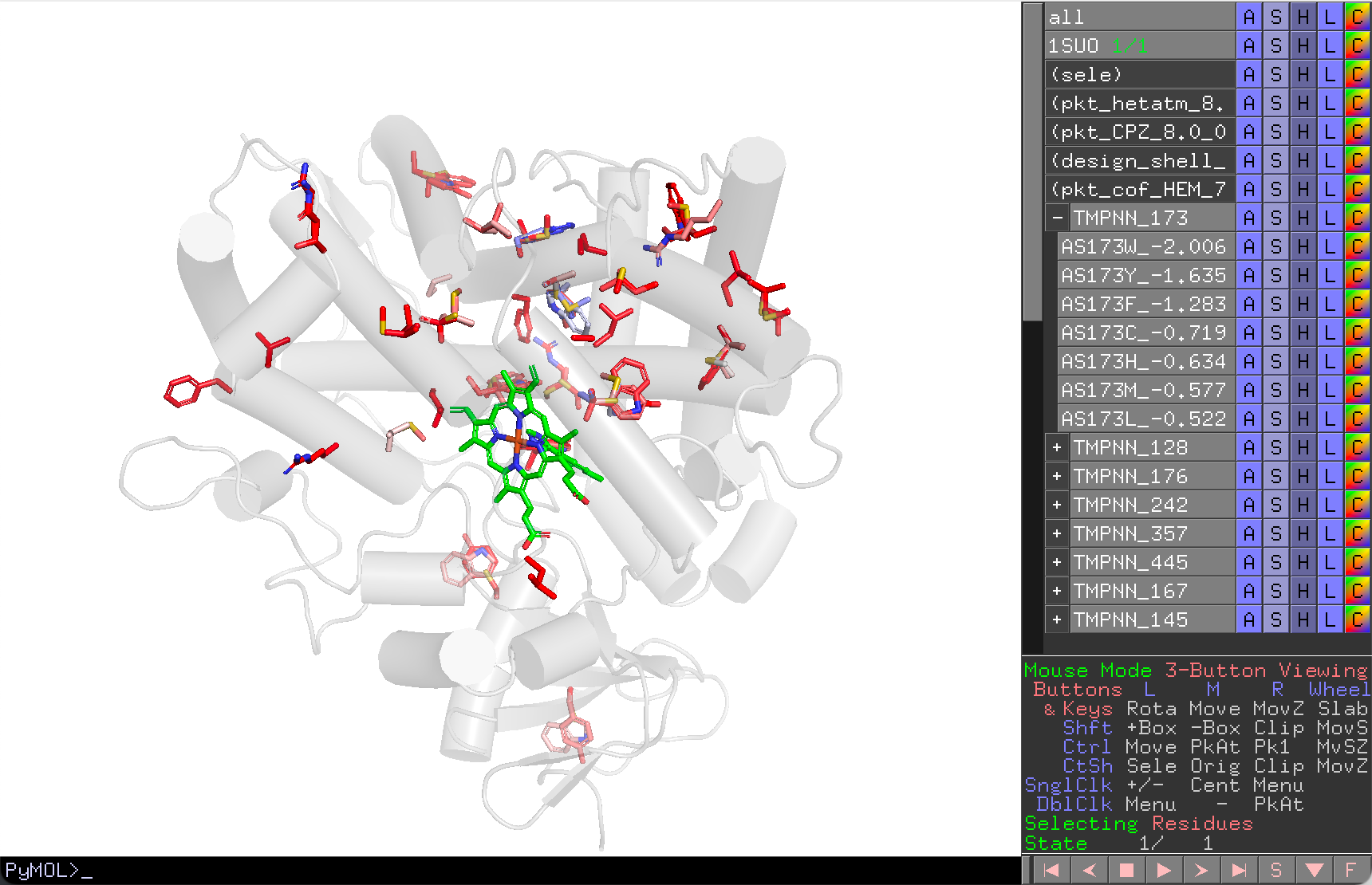
Results are displayed on the structure, colored by predicted ΔΔG. Lower ΔΔG indicates greater stabilization, so enable Invert color preset in the main UI.
Double-Point (Epistatic) Scan
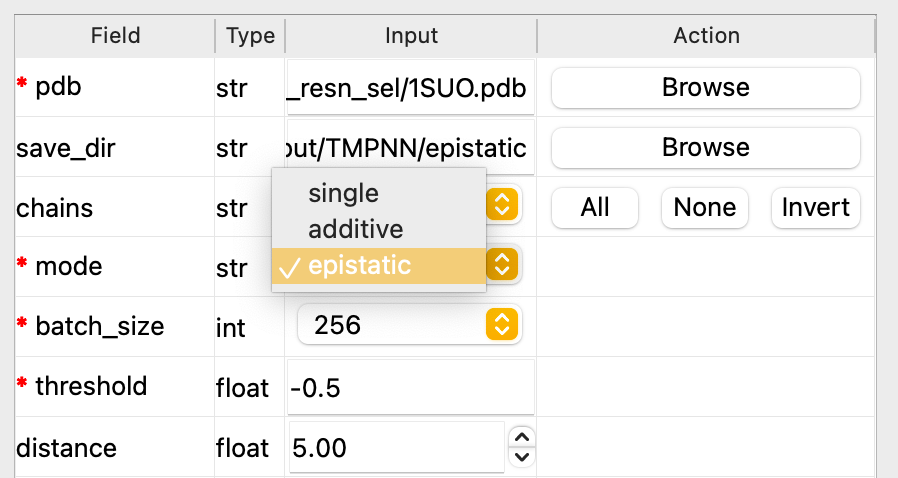
- Open Predictor Tools → Mutant Effects → ThermoMPNN → Double Point.
- Choose the combination mode:
- Additive — sum of individual single-point ΔΔG values.
- Epistatic — full pairwise prediction accounting for interaction effects.
RFdiffusion Backbone Design
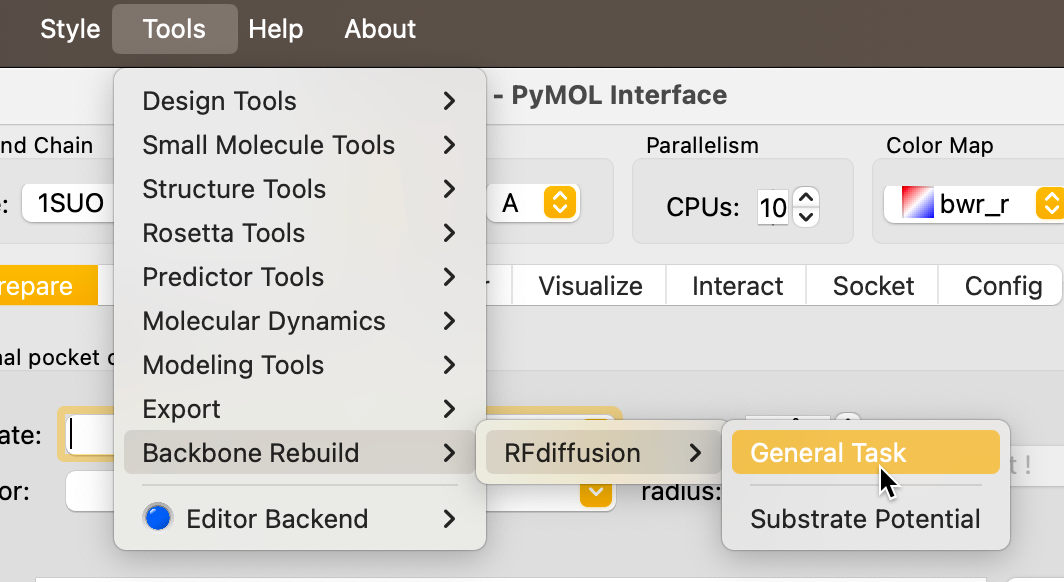
RFdiffusion (menu: Tools → Backbone Rebuild) runs the RFdiffusion model for partial or full backbone generation, useful for remodeling flexible loops or designing novel scaffolds.
REvoDesign acts as a launcher — it runs RFdiffusion YAML configuration files. See the RFdiffusion documentation for full parameter details.
Example: Partial Loop Diffusion
For 1SUO, suppose a loop region at the N-terminus needs remodeling:
-
Write a task YAML file (
partial.yaml):defaults: - base inference: output_prefix: /path/to/output/rfd/res/1SUO_partial num_designs: 1 input_pdb: /path/to/1SUO.pdb contigmap: contigs: - 20-20/A48-492 diffuser: partial_T: 10This configuration applies partial diffusion to the first 20 residues (contig
20-20) while keeping residues 48–492 (A48-492) fixed. -
In REvoDesign, go to Tools → Backbone Rebuild → RFdiffusion.
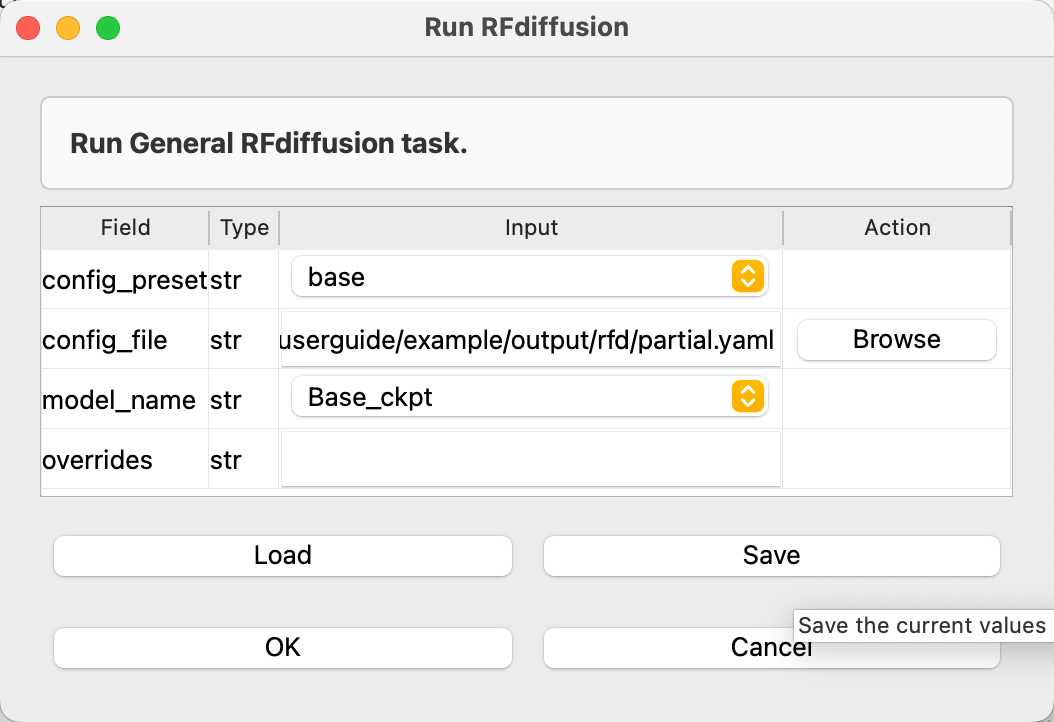
- Load the YAML file and set any additional parameters.
- Click Run.
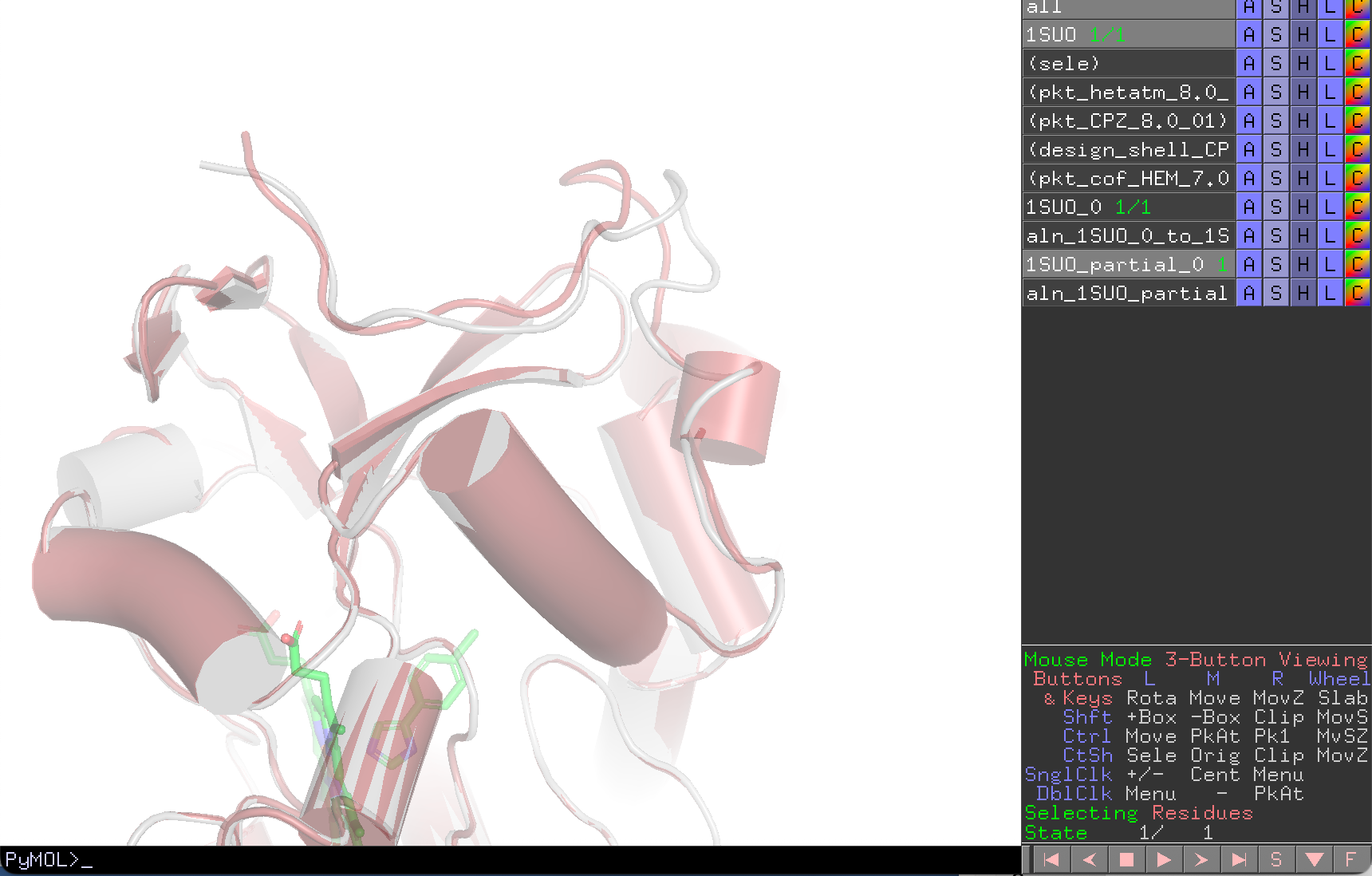
Results are displayed with the original backbone in gray and the redesigned backbone in brick red. After structural alignment, the redesigned region shows the adjusted backbone conformation.
Third-Party Tool Citations
When you run third-party tools through REvoDesign, the corresponding citations
are automatically collected. After execution, check the citation/ folder in
your working directory for a date-stamped .bib file containing the relevant
references for all tools used.
If your research results rely on these tools, cite them appropriately using
the references in this file. Note that some tools used to generate reference
data may not appear in the .bib file — you are responsible for citing those
as well.